
OVERVIEW
There’s no single “best” way to play 2XKO — Xbox controller, PlayStation controller, keyboard, arcade stick, and Hitbox all win tournaments. What matters is setting up whichever one you use so it actually works for you: comfortable reach, sensible button spacing, and a layout that doesn’t fight you during execution.
This guide walks through the optimal setup philosophy for each major input method, plus exactly what to change in your settings. Reference layouts for controller and keyboard are included below.
💡 Before you touch any settings
Whatever you play on, prioritize consistency over cleverness. A slightly less “optimal” layout you’ve drilled thousands of times will always beat a theoretically perfect one you haven’t built muscle memory for yet.
XBOX CONTROLLER
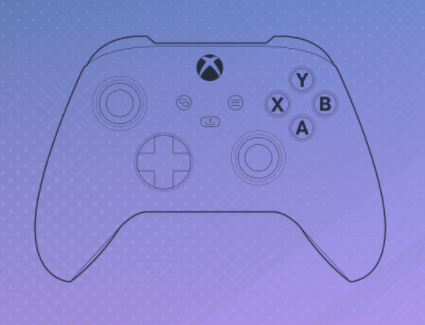
The standard Xbox layout gives you four face buttons, two bumpers, and two triggers — plenty of room to map every attack button plus tag/assist without ever moving your thumb off the stick.
- Keep your most-used normal attack on the button your thumb rests on naturally — usually A or X — so you’re never reaching for your bread-and-butter button.
- Bumpers (LB/RB) are ideal for Tag and Assist inputs — they’re reachable without lifting your thumb off the face buttons.
- If your controller supports back paddles, mapping a second copy of your most-used button there can save your thumb during heavy combo strings.
- Check your in-game deadzone and stick sensitivity settings — a deadzone that’s too small can cause accidental diagonal inputs during neutral.
PLAYSTATION CONTROLLER
PlayStation’s layout mirrors Xbox almost one-to-one (face buttons, bumpers, triggers), so most of the same principles apply — the differences are mostly about hand feel and, on DualSense, a few extra options.
- Square/Cross/Triangle/Circle map the same way Xbox’s face buttons do — keep your most-used attack under your resting thumb position.
- L1/R1 work well for Tag and Assist, same logic as Xbox bumpers.
- DualSense owners can remap the rear buttons (if using an adapter or PS5 back button attachment) for an extra input without breaking your grip.
- Turn off adaptive triggers/haptic resistance for fighting games if your setup supports toggling it — consistent, light trigger pulls matter more than immersion here.
KEYBOARD
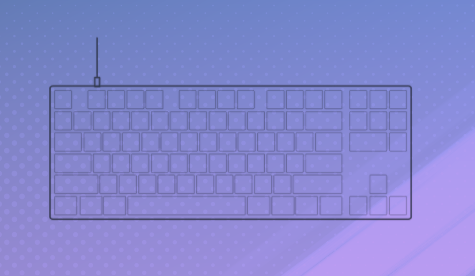
Keyboard is a fully viable way to play 2XKO, especially if you’re already comfortable with WASD-style movement from other genres. The key is deliberate key spacing so your fingers never have to stretch mid-combo.
- Cluster your directional keys and attack buttons close together — the wider your hand has to travel, the more inputs you’ll drop under pressure.
- Use keys your fingers rest on naturally for your most-used attack, the same way you would on a controller.
- Enable key rollover (N-Key Rollover / anti-ghosting) in your keyboard’s settings if it has it — this matters a lot for fighting games since you’ll frequently hold multiple keys at once.
- Consider a compact or split keyboard if you find your hand cramping — many keyboard players in the FGC use tenkeyless or 60% boards for exactly this reason.
ARCADE STICK
Arcade sticks trade the analog stick for a digital lever and give you a full row (or two) of dedicated buttons — the classic FGC tournament standard, especially for players coming from a Street Fighter or Guilty Gear background.
- Standard button layout groups Light/Medium/Heavy attacks in a row your fingers can roll across in order — keep that grouping intact rather than scattering your attack buttons.
- Place Tag/Assist on a button your thumb (not your fingers) can reach, since your fingers are busy on the main attack row.
- Square gate vs. octagonal gate is a personal preference for the lever — square gates give sharper diagonals, octagonal gates feel closer to a d-pad. Try both if your stick supports swapping.
- Consider macro buttons for tag combos only if your hardware allows it and it’s tournament-legal where you plan to compete — don’t build habits around something you can’t use everywhere.
HITBOX / MIXBOX
Hitbox-style controllers (sometimes called “boxes” or “mixboxes”) replace the stick or lever entirely with individual directional buttons — every direction, including diagonals, is its own button pressed with your fingers instead of your wrist.
- Directional buttons are almost always operated by your left hand’s fingers rather than your thumb — give yourself time to retrain this, it feels very different from a stick or pad at first.
- SOCD cleaning (how the box resolves opposite directions being pressed at once, like left+right) is usually configurable — check your box’s settings and match it to how the game expects inputs to resolve.
- Attack buttons are typically laid out identically to an arcade stick’s button row, so the same grouping advice applies.
- Because there’s no physical stick to return to neutral, you have to consciously release directional buttons — this is the single biggest adjustment for players switching from stick or pad.